1. What does Consulting Map Generator do?
It creates interactive maps showing airports, routes, and range circles. You can customize styles, zoom, and export the map as PNG or copy it to your clipboard.
2. How do I add airports?
Enter one IATA code per line in the Airports section:
SJK
LHR
JFK
For range circles:
900nm@MIA
900km@MIA#ff0000
Manual entry with latitude/longitude:
XYZ 37.7749 -122.4194
3. How do I add routes?
Use hyphens to chain segments:
JFK-AMS
MIA-MAD-CDG
4. How do I group routes?
You can organize routes into groups:
group Europe
MAD-FRA
LHR-CDG
CDG-AMS

group South America
GRU-SCL
SCL-LIM
LIM-BOG
Click Manage groups to show/hide groups, change colors, or delete groups.
5. How do I customize the map style?
Under Style, you can change colors for ocean, countries, borders, routes, airports, labels, and range circles. Adjust widths, sizes, and fonts for labels.
6. Can I adjust labels?
- Toggle Show labels
- Adjust orientation and distance
- Click Reset label positions to restore defaults
- Drag labels directly on the map
- New: Click a label to open the per‑label editor (set color and font size for that label only)
7. How do I zoom or center the map?
Use the Zoom input for precise control. To center on an airport, enter its IATA code and click Center.
8. How do I render the map?
Click Render Map after entering airports and routes.
9. How do I export the map?
Click Download PNG or Copy PNG.
Important: The PNG size matches the map area on your screen. If you want the map to occupy half of a slide, reduce the map area to half of your screen size before exporting.
10. Can I edit individual routes?
Yes! Hover over a route and click it to change its color.
Globe only: You can also adjust the arc curvature and choose the route type (Arc or Great Circle Line) under the Options tab.
11. What if the map doesn’t load?
Ensure internet access. If on a corporate network, CDNs may be blocked. Check the Messages area for warnings.
12. Can I resize the control panel?
Drag the vertical resizer between the panel and map. Width is saved automatically.
13. How do I edit individual airport label visibility?
The Edit Airport Label Visibility feature lets you control which airport labels appear on the map without removing the airports themselves.
- Click Edit Airport Label Visibility next to the Show labels checkbox in the Options panel.
- A pop-up will show all currently plotted airports with their IATA codes and names.
- Use the checkboxes to toggle each label on or off. Changes apply immediately if Show labels is enabled.
- Use the search bar to filter airports by code or name.
- Quick actions: Show all or Hide all labels at once.
- Your manual label positions (dragged on the map) are preserved even when labels are hidden.
Tip: Hidden labels do not appear in exported PNGs or copied images.
14. What does the “Arc bending rule” drop‑down do?
The Arc bending rule controls the orientation of arcs when the Route type is set to Arc. It appears under the Options panel only when Route type = Arc.
-
Directional (
east/west): arcs bend based on the segment’s geographic direction. Eastbound segments bow up on the screen (toward the northern hemisphere), while westbound segments bow down. This is useful when drawing Hub-and-spoke routes. Keep the HUB always as an Origin or always as a Destination to make the map looks better.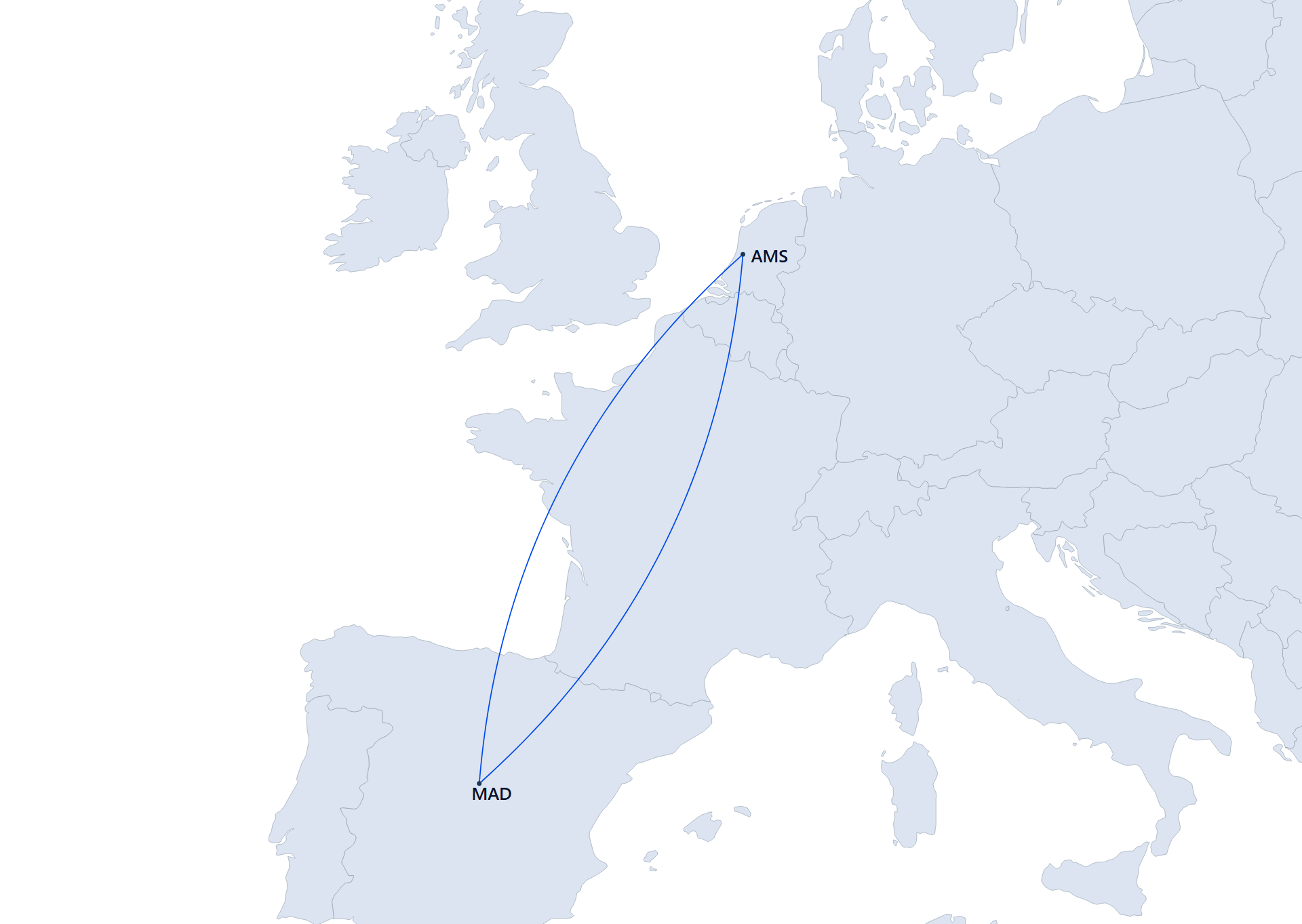
Directional: eastbound MAD→AMS bows up; westbound AMS→MAD bows down. -
Non‑directional (
north-up): arcs always bow upward on the screen, regardless of east or west. Use this when you want visual symmetry or a consistent “upward” aesthetic.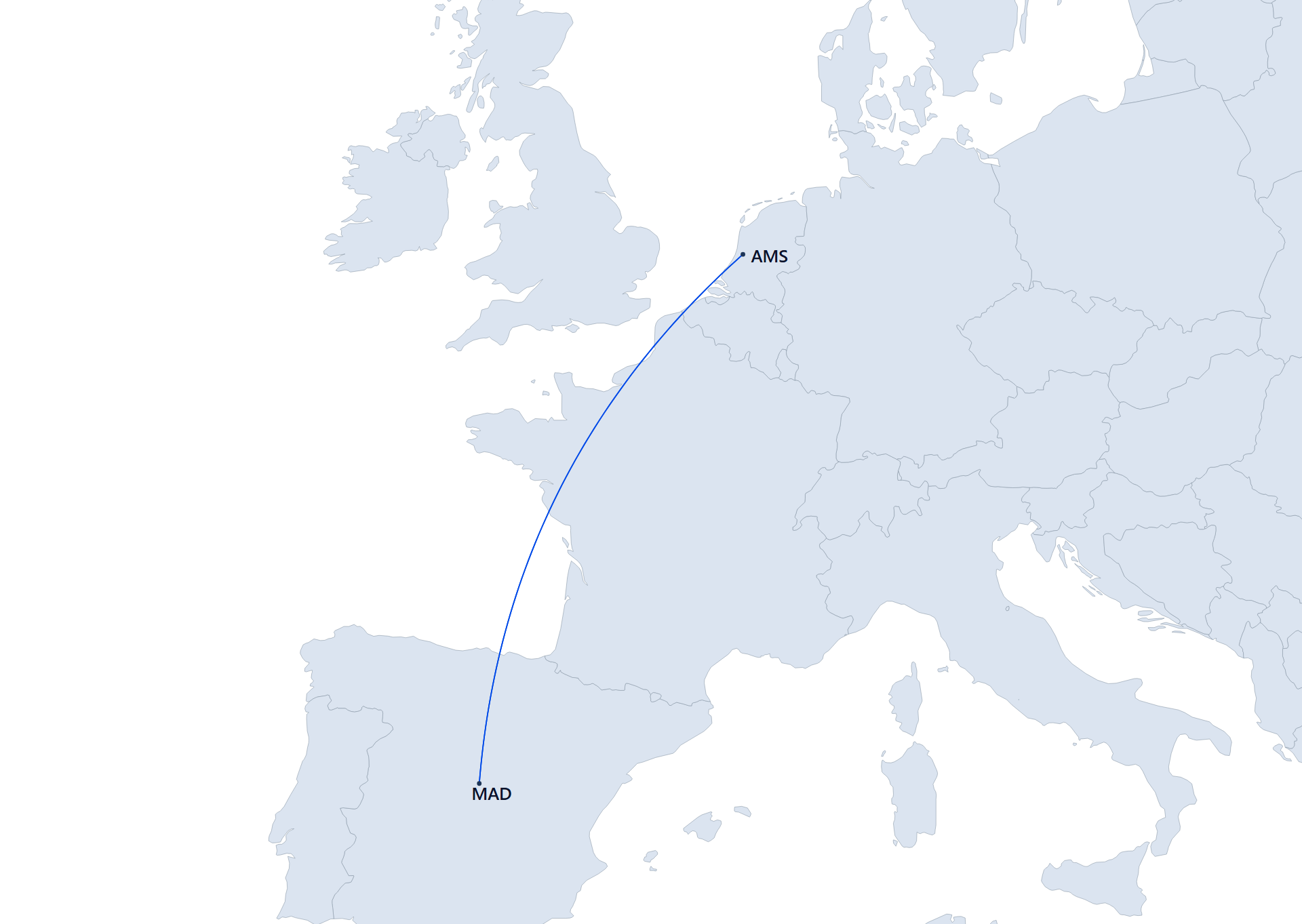
Non‑directional: arcs bow upward irrespective of direction (e.g., MAD→AMS or AMS→MAD).
Notes:
- The rule sets orientation only. Use the Arc curvature slider to control how strongly each segment bows.
- If you don’t see the drop‑down, switch Route type to Arc.
15. How do I hide the shared border between two adjacent countries?
You can visually merge two countries by hiding only the border they share.
- Shift + right‑click a country to select it. The border highlights (amber, thicker) to confirm the selection.
- Shift + right‑click an adjacent country to toggle their shared border. Repeat the same pair to restore the border.
- Press Esc to cancel a pending first selection and remove the highlight.
Style & export behavior
- The shared border is overpainted with the current Style → Countries color and uses a stroke slightly wider than the global Border width with rounded caps/joins to eliminate thin seams.
- Changing Countries color or Border width updates merged borders automatically.
- All changes are applied as inline SVG styles and are preserved in Download PNG and Copy PNG exports.
16. How do I edit individual airports and labels?
Airports (dot color & radius):
- Click an airport dot to open its editor.
- Set a per‑airport dot color (overrides group/global airport color).
- Set a per‑airport dot radius. Airports without an override use the global Airport radius.
- Click Reset airport to remove overrides and return to global defaults.
- Notes:
- Per‑airport radius is supported via dynamic rendering; it’s preserved on rotate/zoom and in exports.
- Group airport color applies unless a per‑airport color override exists.
Labels (color & font size):
- Click a label to open its editor.
- Set a per‑label text color and font size.
- Click Reset label to remove overrides and restore global label color/size.
- Global label controls still affect labels without per‑label overrides.
- Changing label size may re‑anchor the label automatically; your manual label positions (dragged) are preserved.
Export: Per‑airport and per‑label overrides are preserved in Download PNG and Copy PNG exports.